
Background and Purpose
Previously, the same content needed to be published separately on multiple platforms including the official website and public accounts, which not only required repetitive actions but also made it difficult to confirm which platforms had been updated and matched with which articles.
Now, we aim to centralize these tasks on Feishu, reducing redundant operations.
- Automated Publishing: Once the content is approved, it is automatically published on the connected websites, with the results and article links synced back to Feishu.
- Unified Numbering: The same content will use a single identifier regardless of the platform, making it easier to locate and verify.
- Centralized Management: Articles, covers, and videos are uploaded and reviewed on Feishu, negating the need to switch between platforms.
- Auto-Generated English Drafts: AI generates English content following brand requirements, reducing manual translation tasks.
Currently, integrated platforms include 42HOW official website and other proprietary platforms of 42HOW; non-integrated platforms (such as public accounts, Douyin, Bilibili, etc.) still require manual publishing, but the same content identifier should be used for ease of later retrieval.
How to Use in Daily Operations?
For routine tasks, simply register content, upload materials, and complete reviews in Feishu.
The CMS Backend is primarily used when a publication fails or when issues arise, allowing users to check the cause and republish. Log in with the company’s Feishu QR code.
Editing: Content Registration
- Prepare the document and add the document top cover.
- Click the top right “…” → “Widgets” → “Content Registration”.
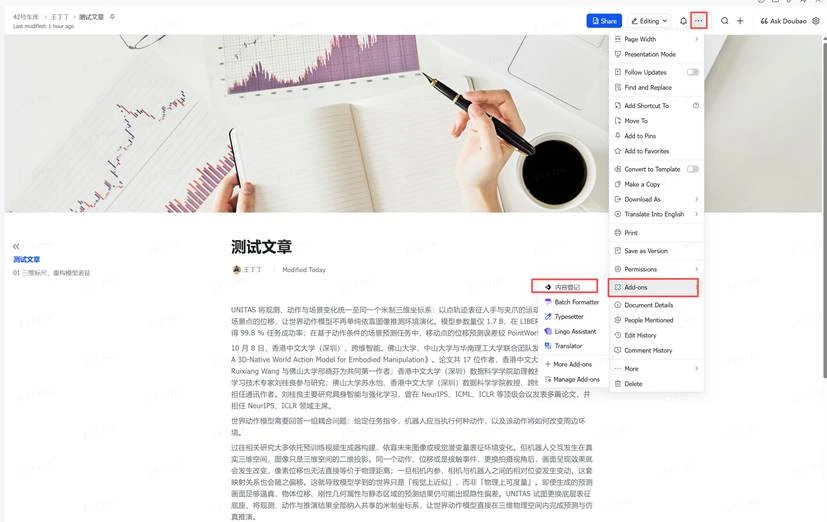
The image shows the interface and operation when editing a document in the Garage CMS. In the top right corner, multiple icons are displayed, with a red box highlighting the “Widgets” icon. After clicking “Widgets,” a drop-down menu appears, with “Content Registration” emphasized in red. This image corresponds with the “Editing: Content Registration” section of the document, providing a visual representation of the steps: clicking on the top right “…” → “Widgets” → “Content Registration,” aiding users in understanding how to perform content registration.“`markdown
- If “Content Registration” is not found, navigate to “…” → “Widgets” → “More Widgets” to add.
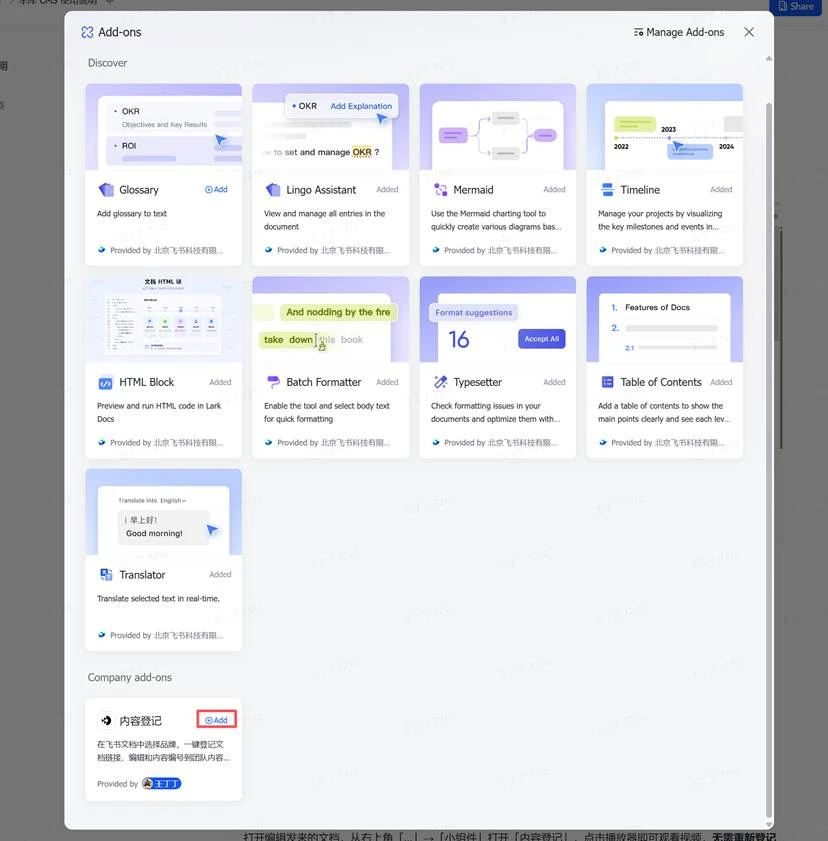
The image shows the interface for adding the Content Registration plugin in the Garage CMS. On the left is the “Add-ons” section, with the “Content Registration” plugin highlighted in red. The right side provides details about the plugin, including its name, description, and provider. This image is closely related to the text, as it illustrates how to add the “Content Registration” plugin when it is not visible, providing users with a clear path for operation.
- Select a brand. For text/image, directly click “Register Current Document”; for video, first drag into the upload box (MP4, max 2 GiB), wait for upload and verification to complete, then click “Register Current Document”.
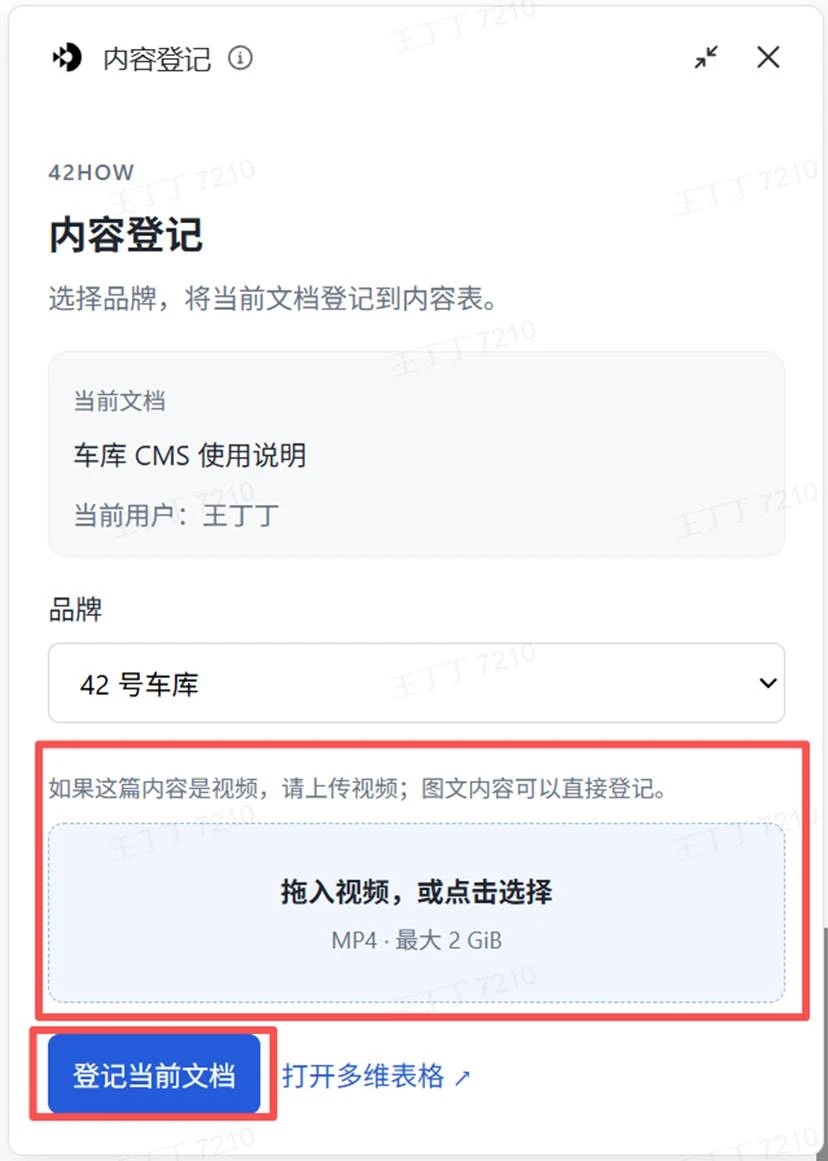
The image displays the Garage CMS Content Registration interface. The brand “42HOW” is shown at the top; below, it instructs that for videos, MP4 format, up to 2 GiB, should be uploaded or clicked directly. At the bottom, there are two blue buttons: “Register Current Document” and “Open Multi-Dimensional Table.” This image directly relates to the text, visually presenting the registration interface and the crucial operation buttons for the “Edit: Register Content” step.
“`1. After seeing the “Registered” status and the content ID, send the document link to the review personnel.
- Once approved, it enters the automatic publishing process, and the publishing status and original link will be recorded back to Feishu.
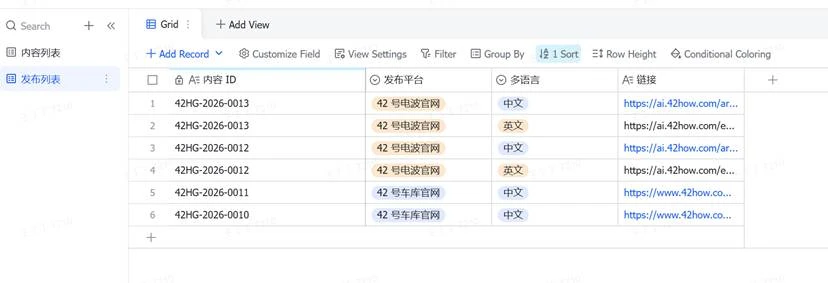
The image displays the publish list interface in the Garage CMS, showing content ID, publishing platform, languages, and links, such as the content ID 42HG-2026-0013 corresponding to the 42DU website, publishing platform as Chinese, and the link as https://ai.42how.com/ar…. The interface top includes operation options like “Grid,” “Add View,” and below are buttons for “Add Record,” “Customize Field.” This image is related to the documentation of publishing list operations, visually presenting the display style of the publish list.
Note: Click register after upload completion. If prompted for a missing cover, add the top cover and click “Recheck.”
After registration, upload or replace the video within the same component, and upon completion, click “Save Video” or “Save Replacement.”
Review Personnel: Review and View Videos
- Mark the reviewer in the multi-dimensional table and select “Approved” or “Return for Modification”: Garage Content
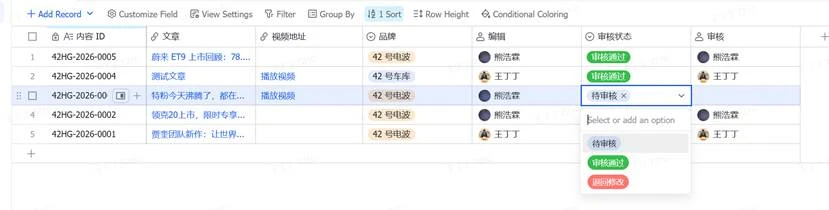 This image depicts the operational interface used by the garage CMS auditors for handling content, showcasing the scenario of pending content review within a multidimensional grid. The table contains several content entries, including content ID, title, brand, and editor information. The content with ID 42HG-2026-000 is in the “Pending Review” status, with the dropdown menu in the “Review Status” column expanded, displaying options: “Pending Review,” “Approved,” and “Return for Modification.” This visually presents the actual interface form for the review operation mentioned in the document’s audit steps.
- Open the document sent by the editor, select “…” in the top right corner → “Widget” to open “Content Registration,” and click the player to watch the video, no need to re-register or upload.

The image displays a document editing interface, with document content, including text and charts, on the left. The right side features the widget area, offering options such as “Content Registration,” “Video,” “Image,” “Attachment,” and “Comment.” The “Video” option is highlighted with a red frame, with the player below showing the video’s title as “In-Depth Analysis LIVE Easy Enjoyment in Hong Kong,” with a duration of 3 minutes 30 seconds, and a playback progress of 0:00/3:30. This image is related to the document’s section “Auditors: Review and View Video,” indicating that auditors can view the video through this widget player without re-registering or uploading.
If there is no video, please have the editor confirm whether the video has been registered or saved; once completed, reopen the widget to check.
This article is a translation by AI of a Chinese report from 42HOW. If you have any questions about it, please email bd@42how.com.